
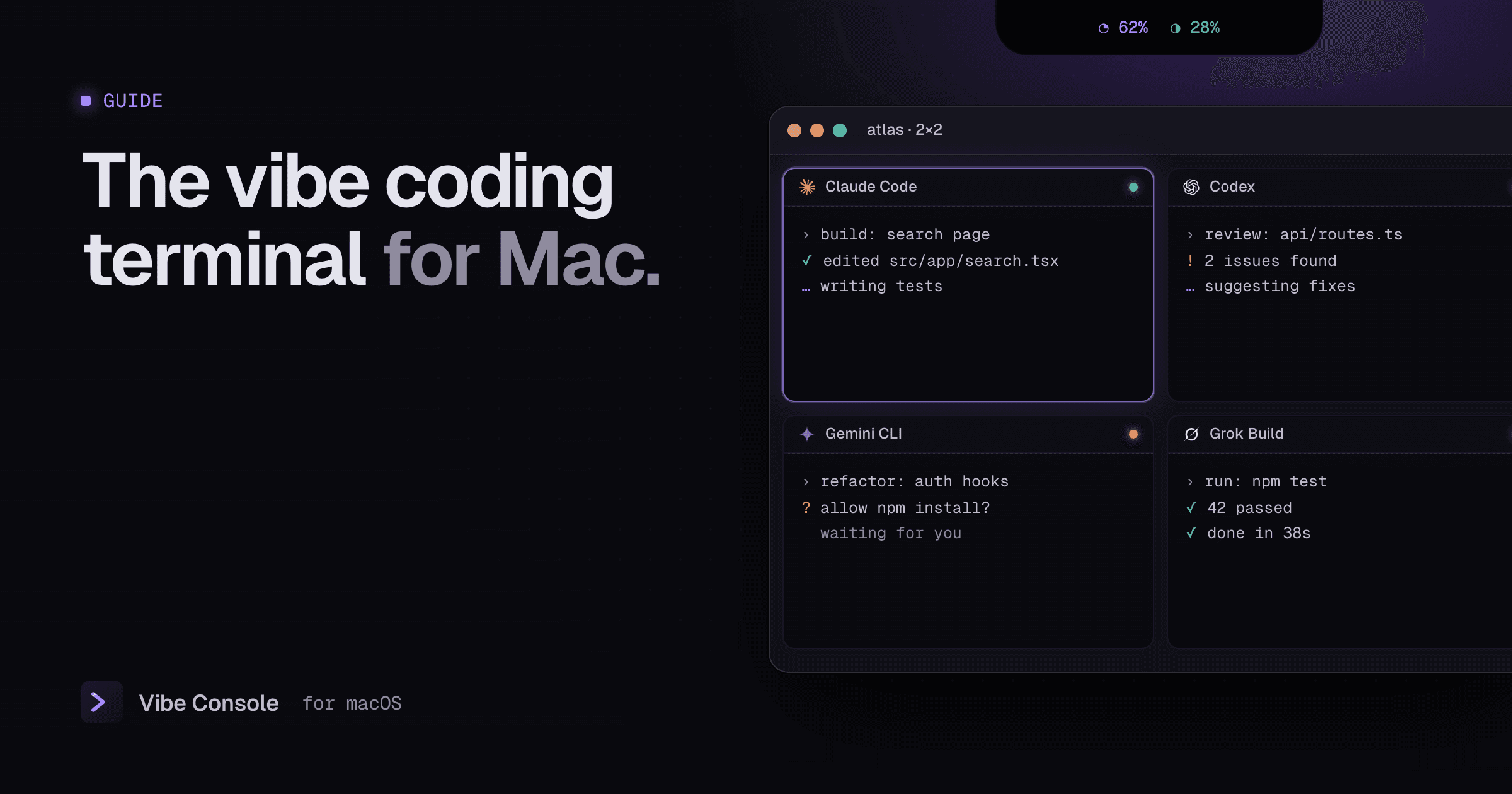
Vibe coding moved into the terminal. Claude Code, Codex, Gemini CLI and the other agent CLIs do the typing; you describe what you want, read what they did and decide what to keep. The app you run them in stops being "a terminal" and becomes your whole workspace.
This guide covers what a vibe coding terminal needs on a Mac and how to set one up, whether you use Vibe Console or put one together yourself.
What makes a terminal good for vibe coding
A normal terminal is built for typing commands. A vibe coding terminal is built for watching agents work. That changes what matters.
1. Several agents at once, in view
You will rarely run just one agent. One builds a feature, another writes tests, a third reviews. They need to be visible together, not buried in tabs you forget about. Look for a grid: two, four or nine terminals side by side, per project.
See How to Run Multiple Claude Code Agents in Parallel for how to split work between them.
2. Knowing when an agent needs you
The biggest time sink in vibe coding is an agent that has been waiting for permission for ten minutes while you looked elsewhere. A good setup tells you, with a status on each terminal and a sound or notification when one finishes or asks for input. See Claude Code Notifications on Mac.
3. Your usage limits, always visible
Claude Code and Codex plans have rolling limits. Running agents in parallel spends them in parallel. You want the remaining quota and the reset time on screen, not behind a command. See Claude Code Usage Limits and Codex Usage Limits.
4. Reading and reviewing the code
Vibe coding still ends with you reading a diff. Switching to a separate editor and git client for every review breaks the flow. A vibe coding terminal should show the changes, a diff and a commit box next to the agents, plus a quick editor for small fixes.
5. Separate working copies
Two agents editing the same checkout will overwrite each other. Git worktrees give each agent its own folder and branch, so parallel work stays parallel.
6. Every agent, not just one
Different agents are good at different things, and a second agent is the best reviewer of the first one's work. Your terminal should start any of them the same way, and let you mix them in one project. See Codex vs Claude Code.
The do-it-yourself setup
You can build most of this from separate tools:
- A terminal with splits, such as iTerm2, Ghostty or Warp, with one pane per agent
- Claude Code hooks and Codex
notifyfor notifications ccusageor the/usagecommand to check limits- A git GUI or your editor for diffs and commits
git worktree addby hand for each parallel task
It works. The cost is glue: five apps, per-project layouts you rebuild each morning, and no single place that shows every agent's state. For a side-by-side look at the terminal options, see Vibe Console vs cmux vs Warp.
The all-in-one setup: Vibe Console
Vibe Console is a native Mac app built as a vibe coding terminal. Everything above lives in one window:
- Terminal grids up to 3×3, and up to 10 terminals per project, restored per project
- Eight agents from one Start button: Claude Code, Codex, Gemini CLI, Grok Build, GitHub Copilot CLI, Cursor CLI, Qwen Code and Kimi Code
- Agent status and chimes in the MacBook notch, so you know which terminal finished or is waiting
- Usage rings for Claude Code and Codex in the notch and toolbar, with reset times
- Source Control with diffs, staging, commits, branches, stashes and worktrees
- A code editor with syntax highlighting and a git gutter, and previews for images, PDFs and video
- An Agent Team: a manager agent that splits your request into tasks for engineers, a designer and QA, each in its own worktree
- Skills and saved prompts you can reuse across projects
It is written in Swift, not Electron, and sold as a one-time license with a free trial. You bring your own agent CLIs and accounts.
Set up your vibe coding terminal in five minutes
- Install at least one agent CLI and sign in, for example
npm install -g @anthropic-ai/claude-codethenclaude. - Download Vibe Console and add your project folder with ⌘O.
- Pick an agent in the sidebar and press Start (⌘K). Open more terminals with ⌘⇧T and choose a grid layout.
- Give each agent its own task. Use a worktree for anything that edits code in parallel.
- Review each agent's work in Source Control (⌘⇧G) before you commit.
FAQ
What is a vibe coding terminal?
A terminal app built around running AI coding agents such as Claude Code and Codex rather than typing commands yourself. It shows several agents at once, tells you when one needs input, and keeps review, git and usage limits next to them.
Do I need a special terminal for vibe coding?
No. Any terminal runs Claude Code or Codex. A dedicated one saves the glue work once you run more than one agent: layouts per project, notifications, usage limits and diffs in one place.
Is Vibe Console a replacement for my editor?
It includes an editor for reading and small fixes, and many people do all their agent work in it. If you prefer, keep your editor open beside it; Vibe Console works on the same folders.
Which agents work in Vibe Console?
Claude Code, Codex, Gemini CLI, Grok Build, GitHub Copilot CLI, Cursor CLI, Qwen Code and Kimi Code. Any other command-line tool runs in its terminals too.